Lifecycle Disposition
Audit Log Lifecycle Management Settings Guide
Use Lifecycle Disposition to identify audit records that have reached the end of their retention period, route them through review and approval, and preserve evidence of controlled destruction.
Introduction
Controlled disposition for retained audit records
The optional Lifecycle Disposition feature in Audit Vault for M365 helps organizations manage the long-term retention and controlled destruction of Microsoft 365 audit records in accordance with internal policies, regulatory requirements, and data governance practices.
As audit records grow over time, organizations may need a structured process to identify older records that are no longer required for operational, compliance, legal, or governance purposes. Lifecycle Disposition provides a secure and traceable workflow to support that process.
Define eligible records
Create rules based on workload, retention period, users, operations, and SharePoint sites.
Review before destruction
Route disposition activity through Reviewer and Approver stages before deletion occurs.
Maintain evidence
Keep rule history, chain of custody, disposition summaries, and destruction certificates.
Control storage growth
Reduce retained audit volume while preserving transparent governance controls.
What You'll Learn
Guide objectives
This guide explains how to manage the full Lifecycle Disposition process from rule creation through final destruction approval.
- Understand Lifecycle roles and responsibilities.
- Create and configure Lifecycle Rules.
- Understand rule iterations, states, history, and email notifications.
- Know when to cancel, update, reject, or archive a rule.
- Recognize overlapping rule behavior and performance limits.
- Use destruction certificates as compliance and governance evidence.
Prerequisites
Before using Lifecycle Disposition
- Your organization is actively using Audit Vault for M365.
- A Microsoft 365 tenant has been configured in Audit Vault for M365.
- Audit records are being successfully collected and retained within the platform.
- Your organization has identified audit records that have reached or exceeded their required retention period.
- Appropriate users and Lifecycle roles have been assigned for review and approval.
- Your organization has a business, compliance, legal, quality, or governance requirement for controlled audit record destruction.
Lifecycle Topics
Lifecycle roles and responsibilities
Lifecycle functionality is located under the Lifecycle menu. Only users assigned to one or more Lifecycle roles can access this section.
| Role | Primary responsibilities | Manage membership |
|---|---|---|
| Lifecycle Coordinator | Create and manage Lifecycle Rules, configure filters and schedules, manage reviewers and approvers, monitor execution, and manage cancelled or archived rules. | Company > Company Roles |
| Lifecycle Reviewer | Review audit records identified for disposition, verify they are appropriate for destruction, and approve or reject review requests. | Lifecycle > Lifecycle Roles |
| Lifecycle Approver | Perform final review, approve or reject destruction activities, and confirm compliance requirements have been satisfied. | Lifecycle > Lifecycle Roles |
Note: A user with the Company Administrator role automatically has Lifecycle Coordinator privileges.
Lifecycle Rules
Create and configure a Lifecycle Rule
Lifecycle Rules define how audit records are identified, reviewed, approved, and ultimately disposed of from Audit Vault for M365.
1. Name and describe the rule
Use a meaningful name and description, such as “Delete Exchange Logs Older Than 1 Year.”
2. Set the retention period
Specify how old records must be before they become eligible for disposition, such as 1 year, 7 years, or 10 years.
3. Select workloads
Choose SharePoint, Entra ID, Exchange, Teams, or a combination of workloads.
4. Add optional filters
Narrow the rule by user, operation, or SharePoint site to target a specific subset of audit records.
5. Store disposition details
Optionally preserve detailed information about each deleted audit log for additional reporting and destruction evidence.
6. Configure schedule and owners
Set the run schedule and assign one Lifecycle Reviewer and one Lifecycle Approver before the rule can run.
Operation
How Lifecycle Rules operate
Once configured, Lifecycle Rules run automatically based on their schedule. When a rule runs, Audit Vault identifies matching audit records, sends the review notification, sends the approval notification after review completion, and performs final disposition after approval.
- If no eligible records are found, no notification email is sent.
- The zero-result run is still recorded in Rule History.
- The rule then waits for the next scheduled run period.
- A rule cannot start another run while a current run is still waiting for review, approval, or disposition.
- If a Lifecycle Coordinator edits a rule during an in-progress review or approval run, the current run is stopped and the rule returns to the Updated stage.
Stages
Lifecycle Rule stages
| Stage | Description |
|---|---|
| Created | The rule has been created and has not started running. |
| Updated | The rule was modified after creation or cancellation and is ready to run again. |
| Waiting for Review | Eligible records have been identified and are waiting for Reviewer action. |
| Review Complete | The Reviewer completed review and the rule is waiting for Approver action. |
| Approved | The Approver approved disposition and the system is preparing for deletion. |
| Cancelled | The current rule run was cancelled before final disposition. |
| Rejected | The rule was rejected during review or approval. |
| Disposition In Progress | Audit records are actively being disposed from the system. |
| Complete | The disposition process completed successfully. |
| Archived | The rule has been permanently archived and can no longer be used. |
Rule iterations: Each successful completion increases the rule iteration count. The count increases only after review, approval, and final disposition all complete successfully.
Notifications
Lifecycle email notifications
| Stage | Recipient |
|---|---|
| Review step | Lifecycle Reviewer |
| Approval step | Lifecycle Approver |
| Final disposition completed | Lifecycle Coordinators, Lifecycle Reviewer, and Lifecycle Approver |
Note: Emails are only sent when there are records eligible for disposition.
Chain of Custody
Rule History
Every action performed by a Lifecycle user or by the system is recorded in the rule's Rule History. This provides a chronological audit trail and helps preserve chain of custody for disposition activities.
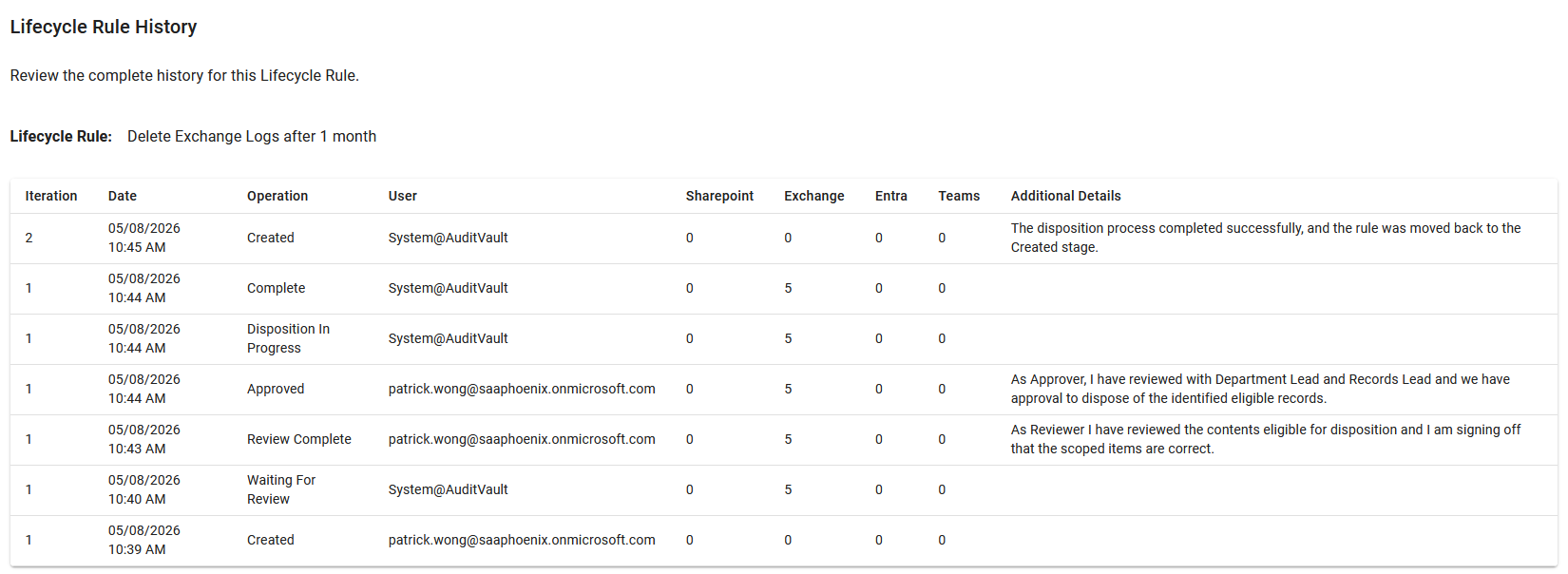
- Rule creation and updates
- Scheduled job execution
- Review approvals or rejections
- Approval actions
- Disposition completion
- Rule cancellation or archiving
Rule Control
Cancelling vs. archiving a rule
Cancelling a rule
Cancelling stops the current run unless the rule has already entered final disposition. After cancellation, the rule will not run again automatically until it is updated.
Use cancellation when you need to pause a rule temporarily or make changes before the next run.
Archiving a rule
Archiving permanently retires a rule from use. The rule can no longer run, but Rule History and historical disposition evidence remain preserved.
Use archiving when the rule or disposition process is no longer required.
Advanced Behavior
Overlapping rules and performance limits
Multiple Lifecycle Rules can target overlapping audit log records. The first rule to complete disposition deletes the matching records and records the deletion counts in Rule History.
Remaining records exist
If a later overlapping rule still finds matching records, the normal review and approval workflow continues for the remaining subset.
No records remain
If no matching records remain, the run returns zero eligible results. The rule must be cancelled and updated before it can run again.
Processing limit
A single Lifecycle Rule run can process up to 5,000,000 eligible audit records per workload.
Deferred records
Eligible records beyond the processing limit are deferred to future scheduled runs and handled by later iterations.
Example
Full Lifecycle Rule iteration
In this example, a Lifecycle Coordinator creates a weekly rule named “Delete Exchange Logs after 1 month.” The rule runs Friday at 9:00 AM, targets Exchange, uses no filters, stores summary-level disposition details, and assigns User A as Reviewer and User B as Approver.
- Rule Created: The Lifecycle Coordinator saves the rule. The rule enters the Created stage and waits for the next scheduled run.
- Waiting for Review: The Lifecycle System Job runs the rule, identifies eligible records, changes the status to Waiting for Review, and notifies the Reviewer.
- Review Complete: The Reviewer confirms the records are appropriate for disposition and the rule moves to Review Complete.
- Approved: The Approver performs final review, approves the request, and the rule moves to Approved.
- Disposition In Progress: The Lifecycle System begins deleting the approved audit records.
- Complete: The disposition operation finishes successfully and eligible records are removed from Audit Vault for M365.
- Reset for next run: The system increments the iteration count and resets the rule back to Created for the next scheduled execution.
Evidence
Destruction Certificates
A Destruction Certificate provides formal evidence that a Lifecycle Disposition operation completed within Audit Vault for M365. Certificates support governance, audit readiness, compliance activities, quality reviews, legal processes, and records management programs.
Certificate details may include
- Lifecycle Rule name and description
- Rule iteration number
- Date and time of disposition
- Reviewer and Approver information
- Workloads included in the disposition
- Total count of audit records disposed
- Rule History and disposition processing details
Store Disposition Details
When enabled, detailed information about disposed audit records is retained for additional evidence.
When disabled, only summary-level disposition counts are retained.